

The setup guide
From your first paper
to your first cited answer.
Start reading straight away. When you want to explore a document with AI, connect your provider and prepare it locally.
1. Install Platypus
Choose the package for your device and follow the platform instructions below. See desktop downloads.
Downloads include a DMG for Apple Silicon macOS, an x64 installer for Windows, and an AppImage for Ubuntu 22.04 and 24.04 x64.
macOS
Open the downloaded DMG, drag Platypus into Applications, and open it from there. The public macOS package is signed and notarized. If macOS blocks a package, check its source and the release instructions; keep Gatekeeper enabled.
Windows
Run the x64 installer and follow its setup steps. The Windows installer is unsigned: SmartScreen or an unknown-publisher prompt may appear, and managed policies or Smart App Control may prevent installation. Keep security controls enabled; a blocked configuration may not be supported by this release.
Ubuntu 22.04 and 24.04
The AppImage runs from your home folder. These instructions are for x64 Ubuntu 22.04 and 24.04; other distributions and later Ubuntu versions have not been qualified.
- Download the AppImage, create an Applications folder in your home folder, and move the download there as Platypus.AppImage. Keep this name and location so the sandbox profile and in-app updates continue to work.
-
Install the FUSE library in Terminal:
sudo apt install libfuse2on Ubuntu 22.04, orsudo apt install libfuse2t64on Ubuntu 24.04. -
On Ubuntu 24.04 only, save the Platypus AppArmor profile
to Downloads. This one-time administrator step allows this application to create its sandbox;
it keeps the system-wide restriction enabled. Install the profile with:
sudo install -m 0644 ~/Downloads/platypus.apparmor /etc/apparmor.d/platypus sudo apparmor_parser -r /etc/apparmor.d/platypus -
Allow execution and launch it:
chmod u+x ~/Applications/Platypus.AppImage
~/Applications/Platypus.AppImage
The app runs as your normal user. Keep AppArmor and Electron sandboxing enabled;
do not use --no-sandbox. To uninstall, delete the AppImage. Your saved data
remains in ~/.config/platypus by default. On Ubuntu 24.04, you can also unload the profile with
sudo apparmor_parser -R /etc/apparmor.d/platypus, then delete that profile file.
The release page includes checksums for verifying downloaded bytes. Checksums do not establish publisher identity.
2. Settle into the paper
Choose Open PDF and select a local file. Reading, search, highlights, and notes work without an AI connection or model downloads. PDF viewing currently accepts files up to 500 MB.
- Search for a term or navigate to a passage you want to understand.
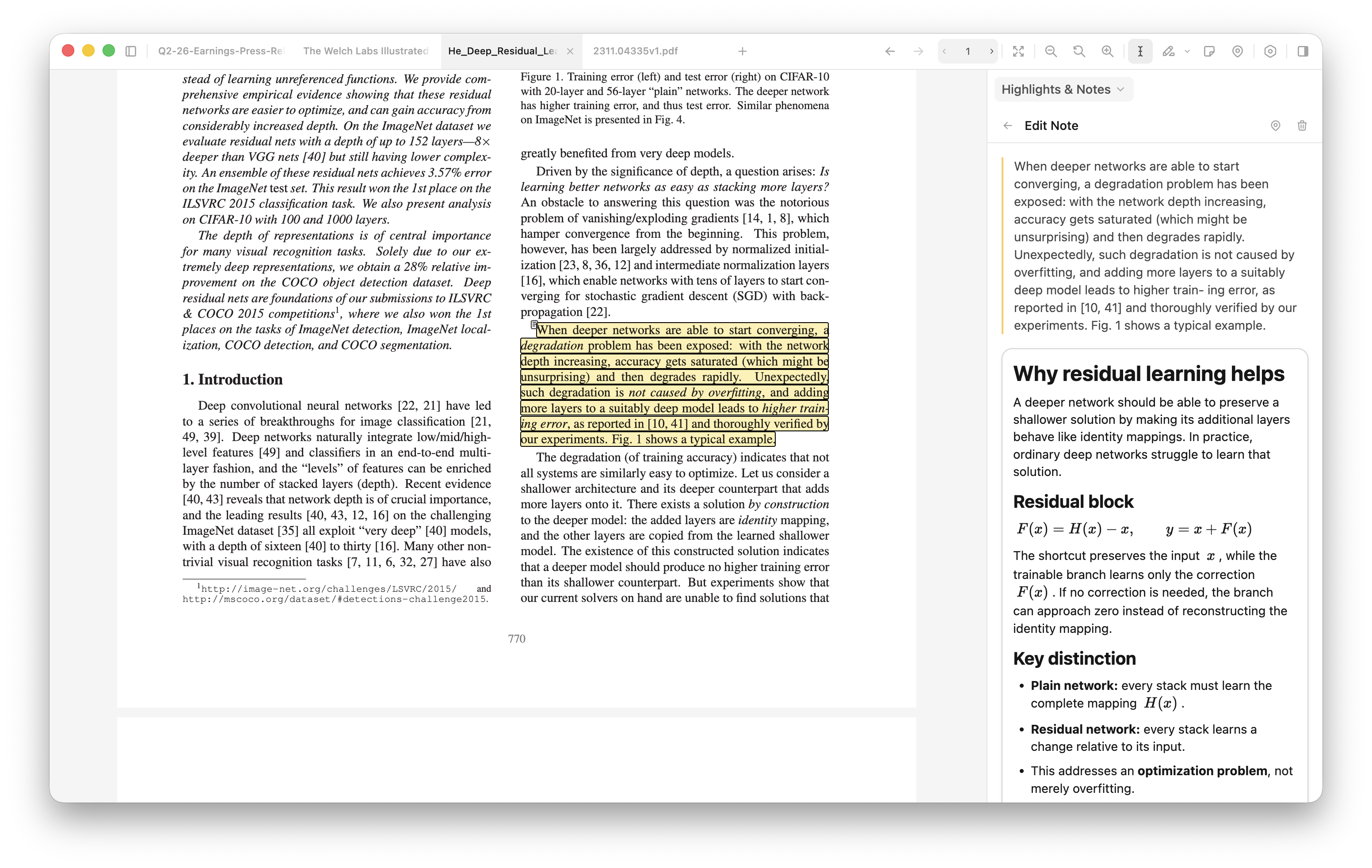
- Select text and apply a highlight. Add a note to the passage, or place a note at a location on the page.
-
In the note editor, type
/to choose a heading, list, task, code block, or math equation. For LaTeX math, try$E = mc^2$.
Choose Open split view in the toolbar to read two parts of the same PDF side by side. Navigation, search and chat citations follow the view you used last. Drag the divider to resize the views; double-click it to return to equal widths.
Notes and highlights are saved in Platypus’s profile on your device. They are not written into the original PDF.
3. Check the chat requirements
On supported devices, document chat uses local resources and document preparation so answers can cite the PDF. The following requirements apply to that local processing.
| Operating system | Processor | Resource download | Fresh setup space |
|---|---|---|---|
| macOS 14+ | Apple Silicon | About 1.65 GB | About 6.4 GB |
| Windows 10, version 2004+; Windows 11 | x64 | About 1.71 GB | About 6.6 GB |
| Ubuntu 22.04+, glibc 2.35+ | x64 | About 2.01 GB | About 7.9 GB |
- Memory: an 8 GB class device, with at least 7 GiB reported memory.
- CPU: at least two logical cores.
- Storage: estimates include download archives, extracted resources, and a 2 GiB reserve. PDFs, indexes, and the app need additional space. Downloads are stated in decimal GB.
- Network: needed for initial downloads, CLI sign-in, and provider-generated answers.
- Document size: chat preparation accepts PDFs up to 150 MB. Scans without a text layer need OCR and can have up to 700 image pages (1,000 with 16 GB or more); PDFs that already have text are not limited.
Intel Macs, Windows/Linux ARM64, and other Linux distributions are not eligible for these local resources. Resource setup checks your device before downloading.
If your device cannot run AI resources, including a 4 GB computer, a short PDF with readable text can use chat without downloads or preparation. These answers have no citations and omit image-only content. The PDF must be at most 150 MB and about 50,000 tokens. Long PDFs and scans still require eligible hardware, local resources and preparation. On eligible devices, prepare every PDF for cited chat.
Setup and document preparation times depend on the device, network, and PDF. Start with a short text-based document; scanned or complex documents can take longer.
4. Connect your AI
Install and sign in to Codex or Claude Code using that tool’s official instructions. A CLI is a command-line tool installed on your computer. The same links are available in Settings → AI providers.
- Confirm that your chosen CLI works with its own sign-in.
- Open Settings → AI providers in Platypus. Enable the provider you want to use.
- If it is not discovered, use its Refresh action. Executable recovery and an optional AI response test are under Diagnostics.
Platypus reuses the CLI’s existing sign-in. Your account must separately have access to that tool and a usable provider allowance; a subscription to a chat website alone does not establish compatibility. Answers use your chosen provider’s allowance, and the optional response test also uses allowance.
Model choices come from connected CLIs. Other provider integrations and API-key connections are planned.
5. Set up local processing
If your device cannot run AI resources and your PDF qualifies for immediate chat, continue to the next step.
- Open Settings → AI chat.
- Review and accept the Gemma terms and use restrictions.
- Choose Install AI resources. Platypus manages Python and model downloads and verifies the files. You do not need to install Python or pip packages yourself.
- Wait for setup to finish. Use the page’s cancellation, resume, or retry controls if a download is interrupted.
- Choose an Answer model when the selector appears. You can also change the model in the chat composer later. Settings supplies the default for new chats; an existing chat keeps its provider.
RAG means retrieval-augmented generation: finding relevant document passages and supplying them as context for an answer. Parsing and retrieval happen on your device. Documents estimated at up to 50,000 tokens are sent in full; longer PDFs use planned searches and section collection. Planning uses the selected provider’s allowance and can add waiting time. Questions and supporting context go to your selected AI provider.
6. Ask, then inspect the source
Start with a text-based paper you know well. This walkthrough uses the published Deep Residual Learning for Image Recognition (ResNet) paper.
- Open the PDF and choose Prepare for chat. Simply opening a document does not prepare it. Devices that cannot run AI resources can skip preparation for short readable PDFs.
- Wait for preparation to finish. Progress appears in the app, with cancellation and retry available.
-
Ask a question whose answer is stated directly in the document. For the ResNet paper, try:
Why does this method work for deeper neural networks?
- Read the response and, when citations are available, open one to inspect the referenced passage in the PDF. Immediate chat on devices without AI resources has no citations; check the answer against the document yourself.
- Check the surrounding text. Does it support the exact claim, including its assumptions and qualifications?
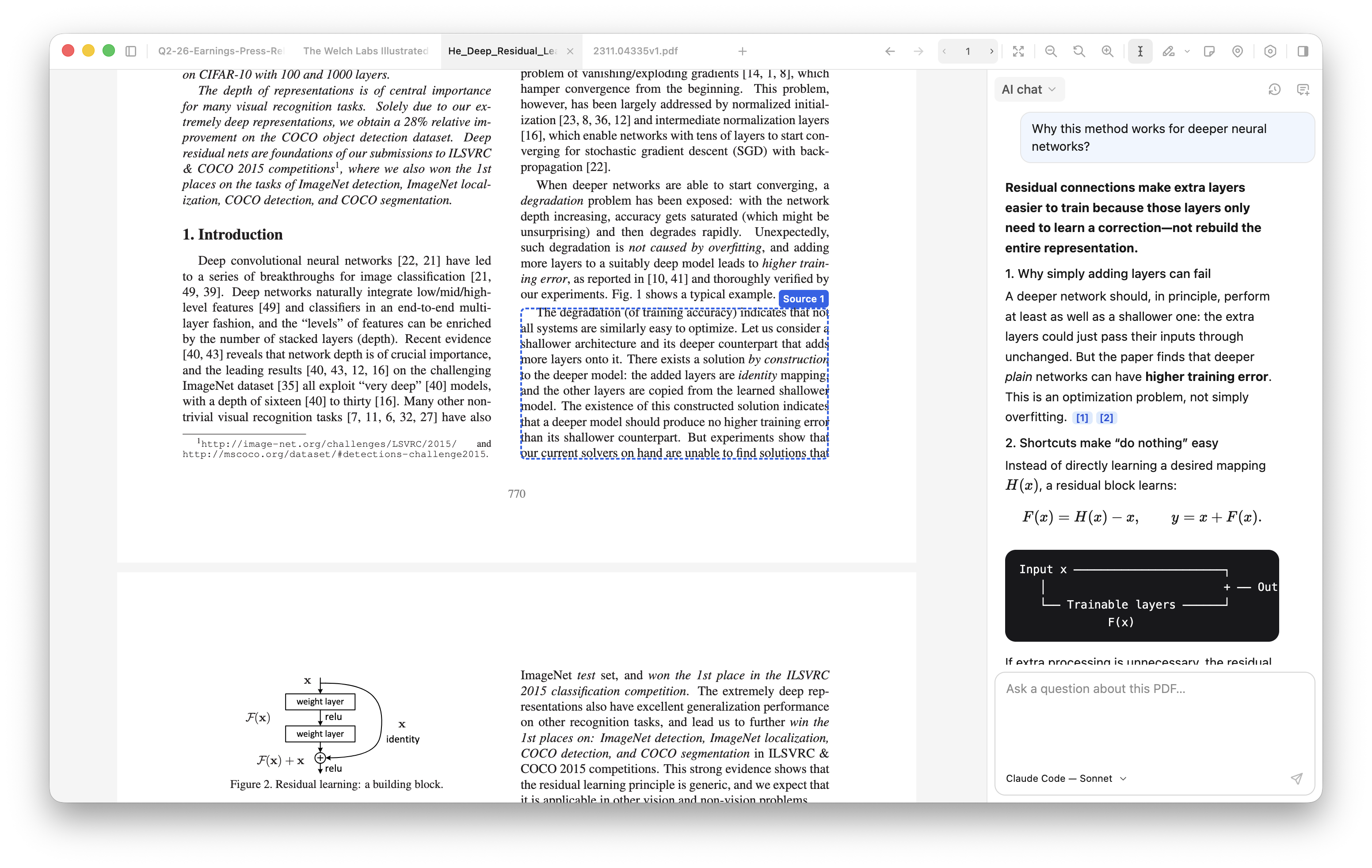
Chat accepts one question at a time while keeping your next draft editable. Stop ends the current answer. Rewind removes a question and the later conversation after confirmation, returning the question to your draft. Stopped, failed and interrupted answers remain visible beneath their questions.
Your actual answer and citations will vary. If no useful citation appears, try a more specific question about a paragraph. You can attach a direct PDF selection as context; citations come from supplied document passages, so a selection does not automatically become a citation source.
Answers can be wrong, and a cited passage can fail to support the exact claim. Table recognition and table-cell retrieval are currently disabled. Review the known limitations.
Keep your work within reach
Use Settings → Saved data to save your notes, highlights, and chats as Markdown or JSON. Keep your original PDFs backed up separately. Export files are readable outside Platypus, but cannot currently be imported to restore the app.
Next: your data
Exports & backups